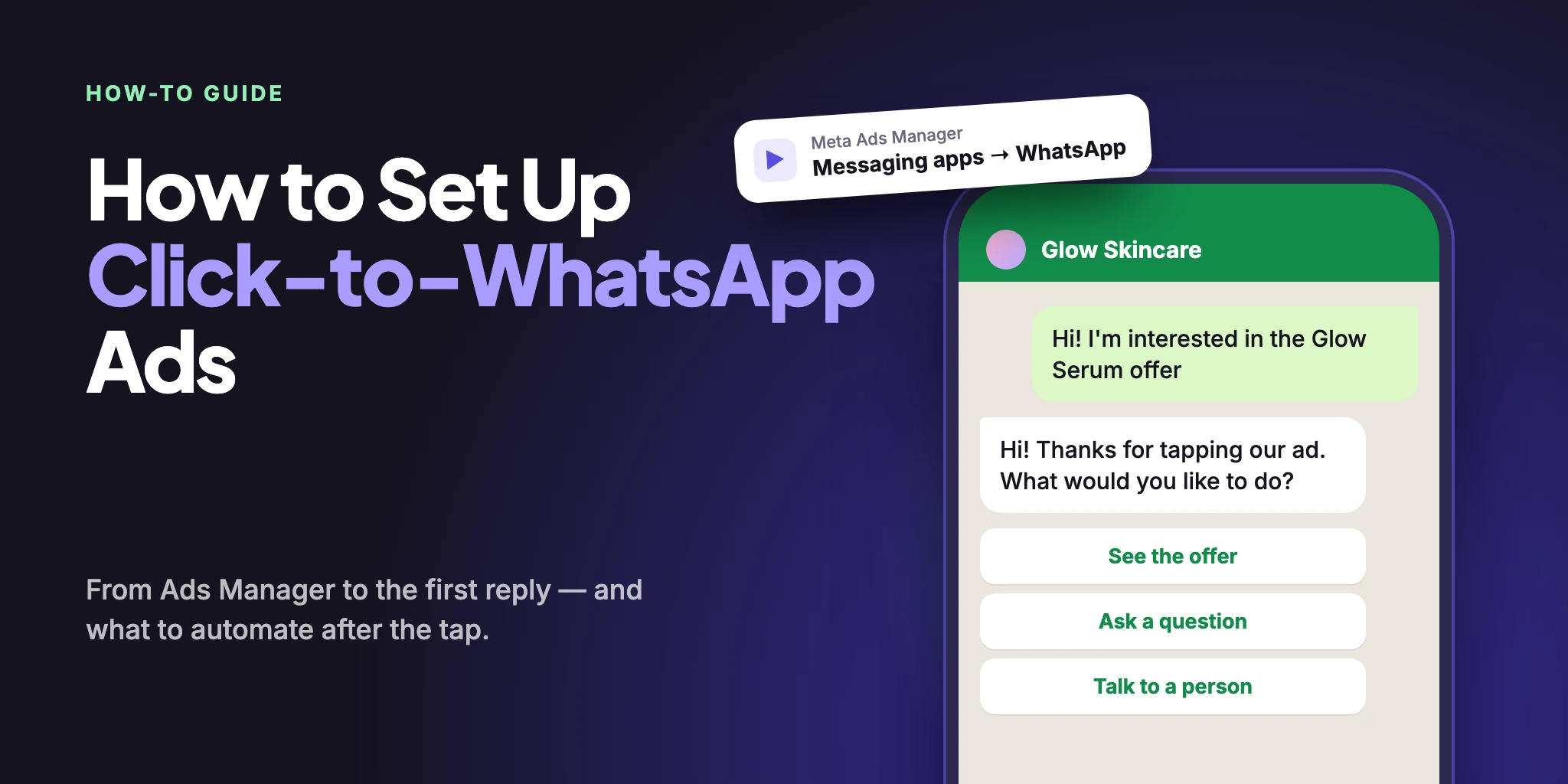
Click-to-WhatsApp ads put a button on your Facebook or Instagram ad that opens a chat with your business. The campaign takes about twenty minutes to build in Ads Manager. What decides the result is the first minute after the tap — so this guide covers both: the campaign, and the automatic answer that waits behind it.
Click-to-WhatsApp Ads: Quick Answer
The short version:
A Click-to-WhatsApp (CTWA) ad is a Meta ad whose button opens a WhatsApp chat with your business instead of a website.
In Ads Manager you pick an objective, choose WhatsApp as the message destination, set the budget and audience, add the creative and the opening message, and publish.
You need a Facebook Page with your WhatsApp number linked, an ad account, and — to answer automatically — the same number connected to a platform such as WABB.
The ad only starts the chat. Reply within 24 hours and the conversation stays free for up to 7 days; an instant first reply from a flow or an AI Agent is what turns the tap into a lead.
What You Need Before You Start
Meta’s own guide for these ads assumes three things: an ad account, and a Facebook Page with a WhatsApp number linked to it, manually or through the API.
Source: Meta for Developers — Ads that Click to WhatsApp, checked 12 October 2026.
A Facebook Page
The ad runs as your Page, and your WhatsApp number is linked to it.
A WhatsApp number
The number people will message. For automation it must be connected to your platform.
An ad account
Your Meta ad account in Ads Manager, with a payment method for the ads.
Connect the number to before the ad goes live, so the first tap already meets a working reply. In WABB the status of the number sits under Settings → Connection:

Before you start
Always test on a phone. Meta’s free entry point window only works when the person taps the ad in the WhatsApp Android or iOS app, so a test from WhatsApp Web or Desktop will not behave like a real lead. Background on the ad format itself: Click-to-WhatsApp ads in India.
Create the Campaign in Ads Manager
The menus in Ads Manager change often, so use the names below as a map and check the exact labels in your account. The steps follow Ads Manager’s three levels:
Illustration: where each step below lives in Ads Manager.
Open Ads Manager and click Create
Name the campaign so you can tell it apart later — for example the product and the month.
Choose an objective
Meta’s developer guide lists Engagement, Leads, Sales and Traffic as the objectives that support ads that click to WhatsApp, and the Help Center article also covers Awareness. Pick the outcome you want to measure and pay for.
Set WhatsApp as the message destination
This is the step that turns a normal ad into a Click-to-WhatsApp ad: the button opens a chat instead of a page. With a Traffic or Engagement objective, open the Conversion section, choose Message destinations, pick your Facebook Page and tick WhatsApp. With Leads, select WhatsApp in the Conversion section. Older guides call this Messaging apps.
The number connected to the Page is the one the ad uses. If the WhatsApp option is grayed out, use Connect account and add the number.
Set the goal, budget, schedule and audience
Under Performance goal, Meta selects Maximize number of conversations for Leads; with Engagement you choose it from the list. WhatsApp’s own guide suggests running an ad for at least seven days and recommends an audience of at least 2–10 million people.
Add the creative
These ads support an image, a video, a carousel or a slideshow. Lead with the offer, and keep the button text about the next step — chat, ask, order.
Choose the opening experience in Message template
In the Message template section — Ads Manager may label this Conversations — set the greeting. Two options matter here: a Pre-filled message, which puts text in the WhatsApp input box and suits one product or campaign, and Frequently asked questions, which shows questions the customer can tap to send.
Either way, the text the customer sends is what reaches your number. Make it name the offer — for example “Hi! I’m interested in the Glow Serum offer.” — and use a different one for each ad; you will match on it in WABB later. Check it in Preview, then publish.
Here is where steps 2, 3 and 6 live in Ads Manager:
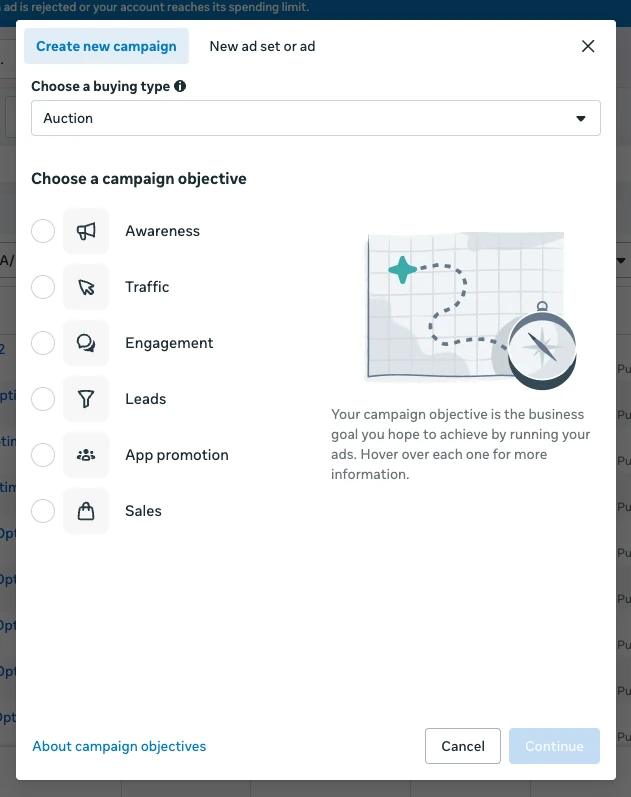
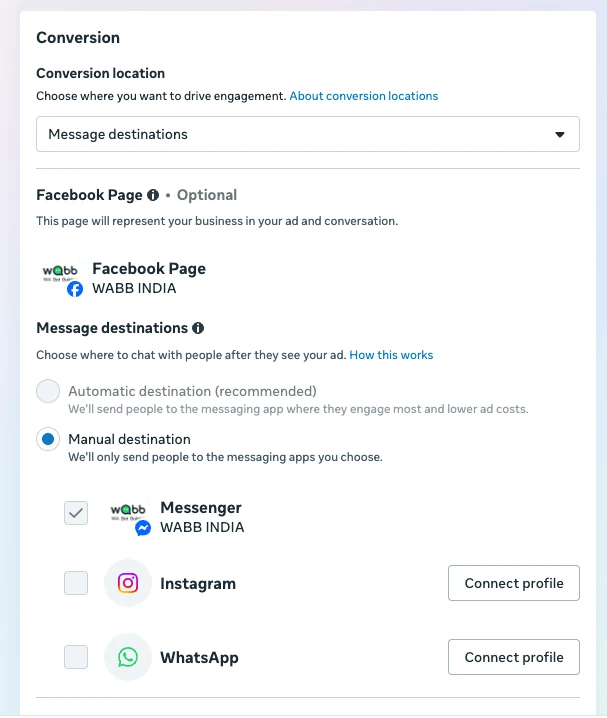
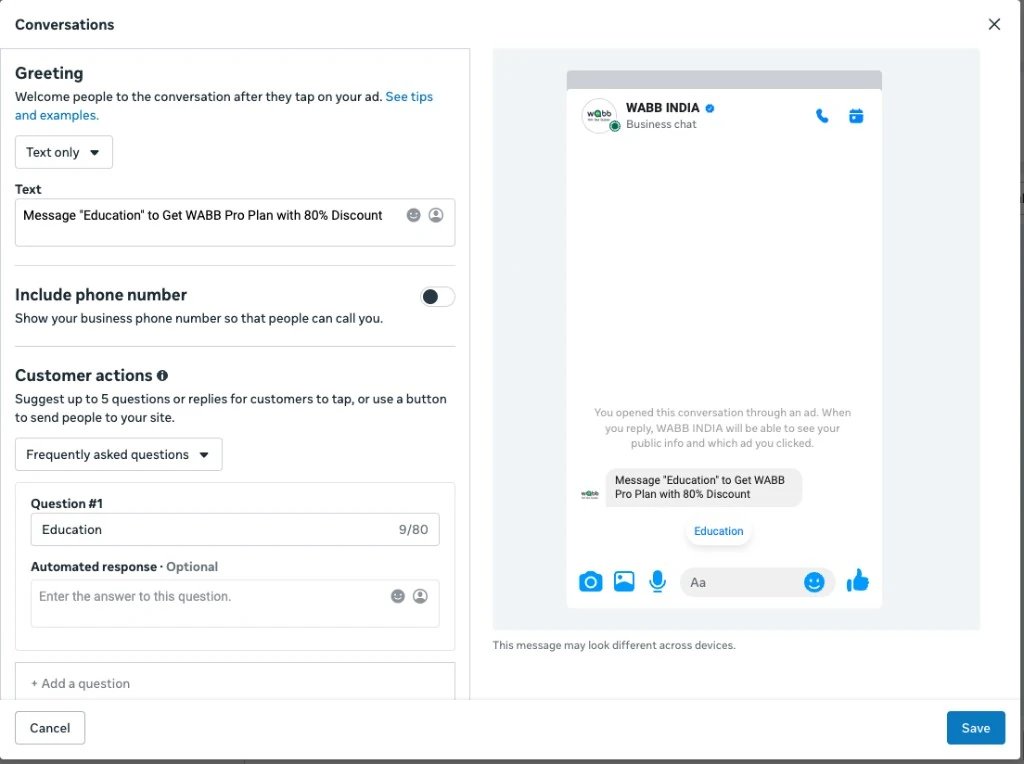
Sources: Meta Business Help Center — Create ads that click to WhatsApp in Ads Manager, WhatsApp Business — Get started with ads that click to WhatsApp and Meta for Developers — Ads that Click to WhatsApp, checked 12 October 2026.
What Happens After the Tap
A person taps the button, WhatsApp opens with the message you set, and they press send. From that moment a 24-hour customer service window is open and your number is expected to answer. Without automation, that answer waits for someone to look at their phone.
The ad ends at the tap; the sale is decided in the chat.
Hi! I’m interested in the Glow Serum offer.
Hi! Thanks for tapping our ad. The Glow Serum is 20% off this week. What would you like to do? [See the offer] [Ask a question] [Talk to a person]
Illustration: the reply built in the next section. The customer’s message is the phrase set in the ad.
WABB gives you two places to decide that reply. New contacts who have never messaged you get the Welcome message flow; anything that isn’t matched by a keyword gets the Default response:
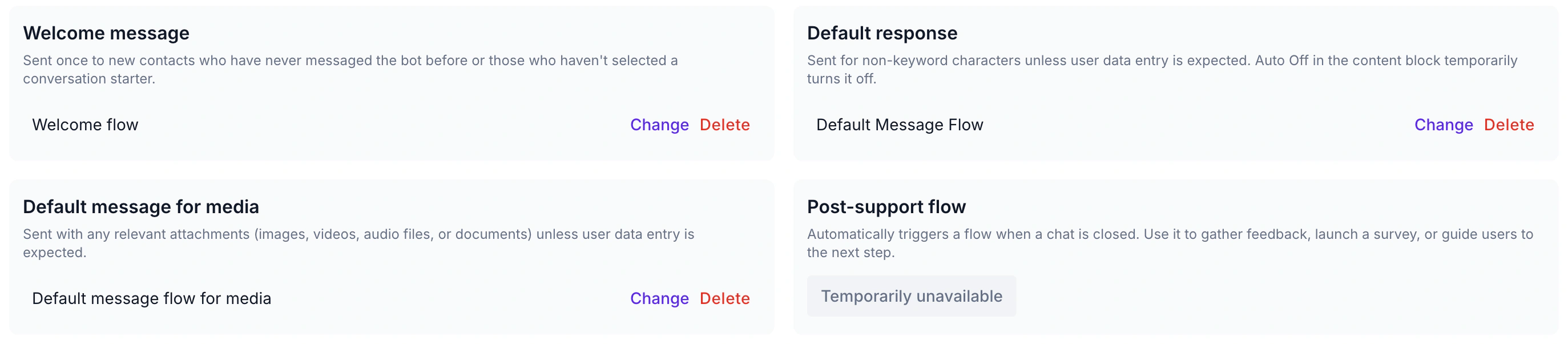
Both are generic. For an ad you want something more exact — the reply that matches the offer the person just saw.
Give Each Ad Its Own Flow in WABB
WABB doesn’t read Meta’s ad ID, so the link between an ad and its answer is the opening message. One ad, one phrase, one keyword, one flow.
Step 1: Build the flow
Under Flows, click Create new flow and add a Send Message block: the greeting plus up to three reply buttons. The block’s 24-hour messaging window switch is set to Within — the right choice for a reply to a message the customer just sent.
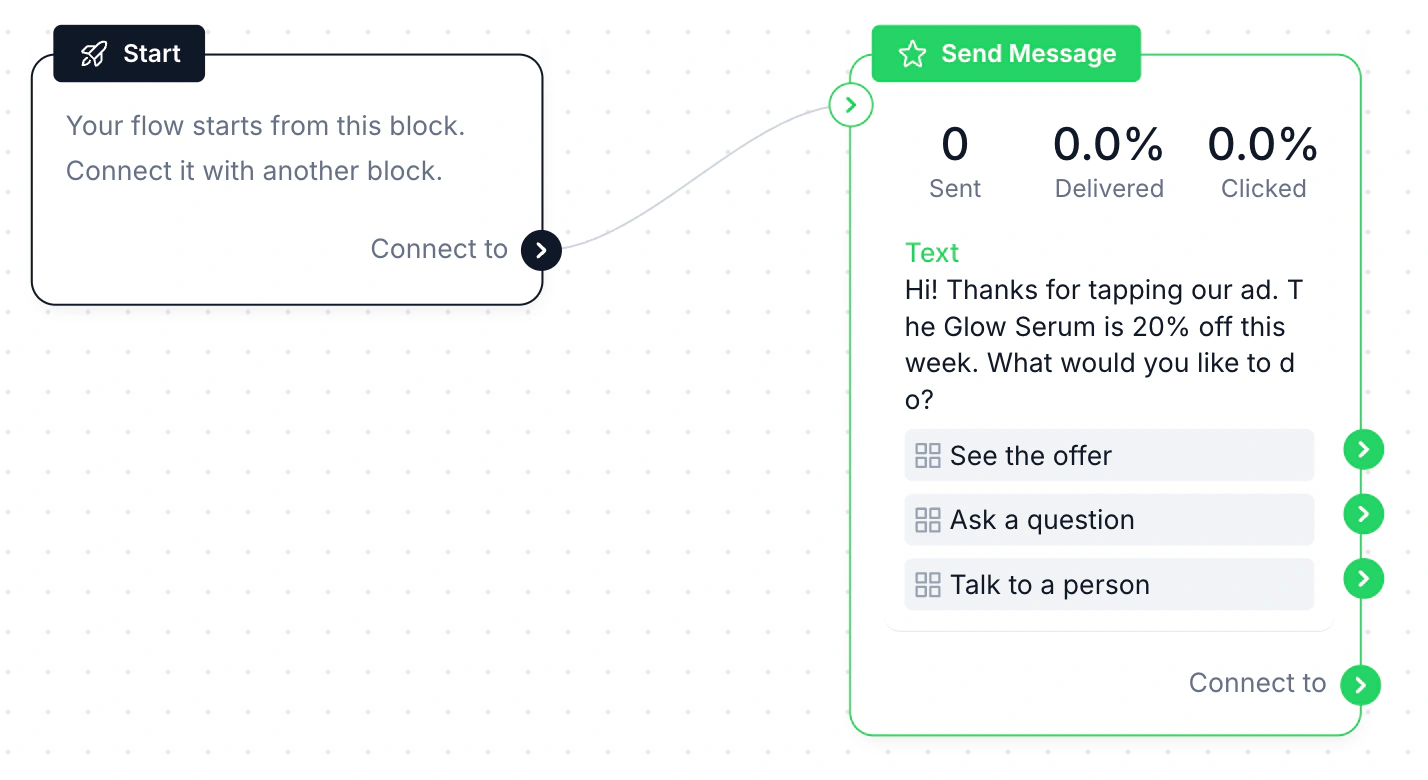
Step 2: Create the keyword
Go to Automation → Keywords and click Create new keyword. Give it a name, then choose what it starts in Start flow / AI Agent. The list holds your flows and your AI Agents together.
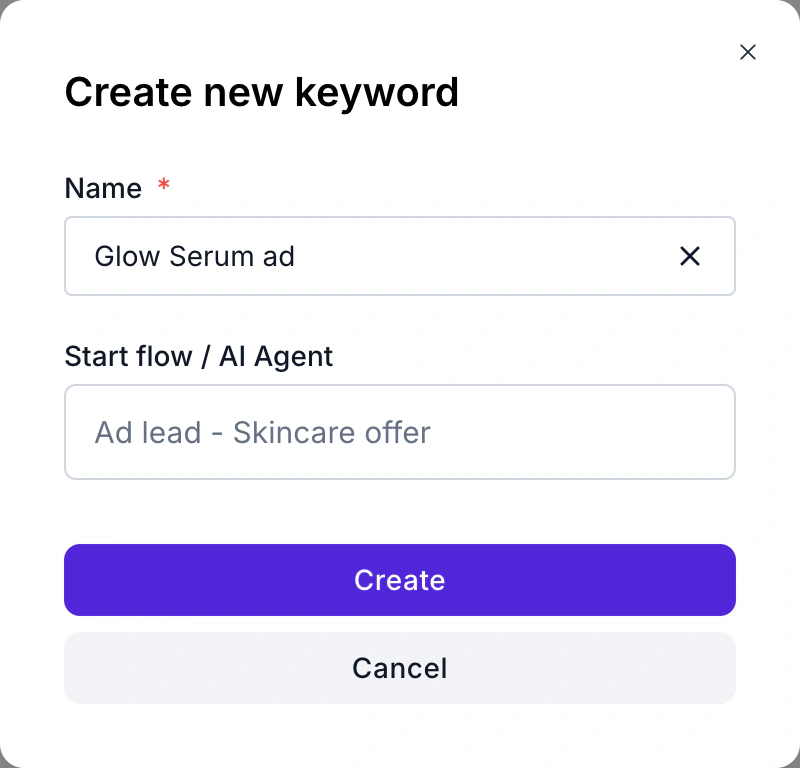
Step 3: Set the match and switch it on
In the list, pick the condition, add the phrase and turn the Activate switch on. Here Contains with “Glow Serum” starts the flow whenever a message mentions the offer.
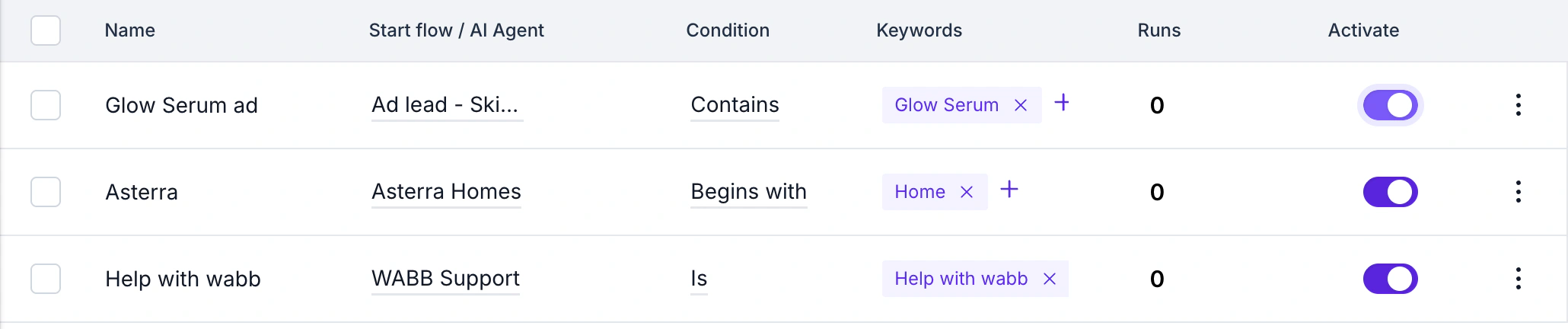
Four conditions are available, and the choice matters more than it looks:
| Condition | Use it when | Example phrase |
|---|---|---|
| Begins with | The ad’s opening message starts with a fixed phrase. | Glow Serum: I’d like the offer |
| Contains | The product or offer name can sit anywhere in the message. | Glow Serum |
| Contains whole word | You want a word to match only when it stands on its own, not inside a longer word. | serum |
| Is | The message must match the phrase exactly. | GLOWOFFER |
Step 4: Repeat for every ad
A new ad means a new phrase in Ads Manager and a new keyword here. The Runs column shows how many times each keyword has started its flow — a simple count of how many chats each ad opened. If a question can’t be answered by a fixed path, start an AI Agent from the same keyword instead; here is how to build one.
Worth knowing
Run a real test before launch: tap your own ad on a phone, send the message, and watch which flow answers. A new contact can also match your Welcome message, so check the order in which they fire for your account.
Examples for Four Businesses
The pattern is the same for every business: the ad’s opening message names the offer, a keyword catches that name, and the flow asks the first useful question.
| Business | Message from the ad | Keyword in WABB | First reply |
|---|---|---|---|
| Online skincare store | Hi! I’m interested in the Glow Serum offer. | Contains “Glow Serum” | The offer, then See the offer, Ask a question and Talk to a person. |
| Real estate | Hi, please send details of the 2 BHK in Whitefield. | Contains “Whitefield” | Price range and photos, then the budget and the best day for a visit. |
| Coaching institute | Hi, I want the Python course syllabus. | Contains “Python course” | The syllabus and batch dates, then one question about the learner’s experience. |
| Dental clinic | Hi, I’d like to book a dental check-up. | Contains “dental check-up” | The preferred day and time, then the chat goes to the front desk. |
Illustration: example businesses and messages, not customer results.
Keep the first reply short and end it with one question the person can answer in a tap. A long brochure up front is the fastest way to lose the lead you just paid for.
Hand the Warm Leads Over to People
A flow that answers well and then stops is a polite dead end. The buttons are where the lead tells you what it wants, so each one needs a next step. In the flow builder an action block can do these:
Add tag
Mark everyone from this ad, so you can filter their chats by Tag later.
Assign chat and mark as open
On “Talk to a person”, put the chat in your team’s queue.
Notify team member
Tell the right person a lead is waiting, so a reply doesn’t sit until morning.
The team then works from Chats, filtering by assignee or by tag. For leads that are not ready yet, a follow-up campaign can bring them back, within WhatsApp’s opt-in rules. People who tapped your ad did start the conversation, but check the rules for the message type you plan to send.
When the 24 Hours Run Out
A person who tapped your ad and went quiet is still a lead, but the rules change after a day. Meta allows non-template messages only inside an open 24-hour customer service window, which opens and resets with each message from the customer. Template messages can be delivered at any time.
Source: Meta for Developers — Pricing on the WhatsApp Business Platform, page updated 30 September 2026, checked 12 October 2026.
So a follow-up after silence needs an approved template. In WABB they live under Settings → Connection → Message templates, with the category and approval status:
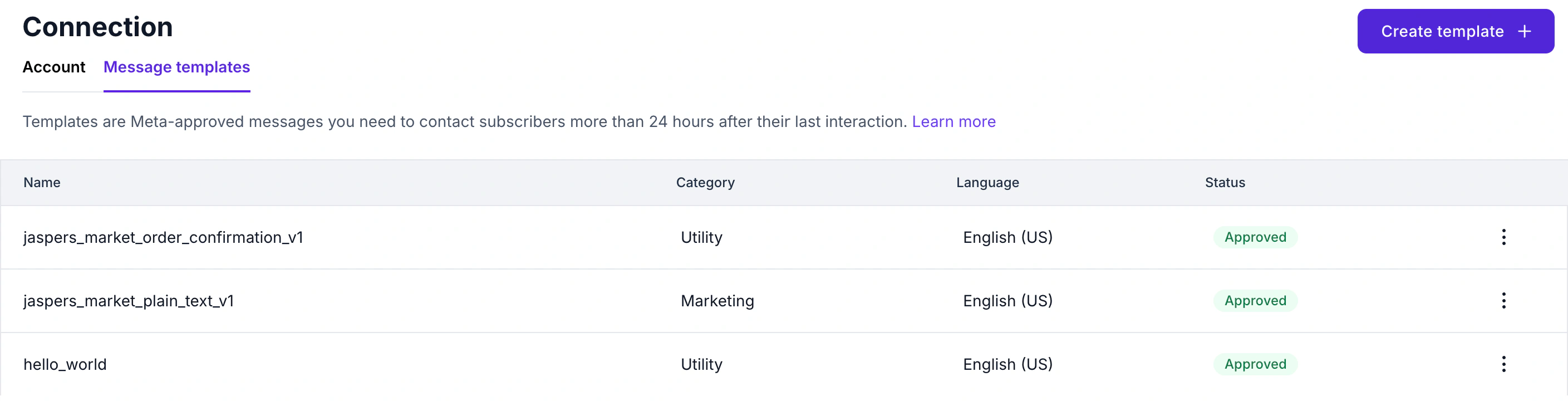
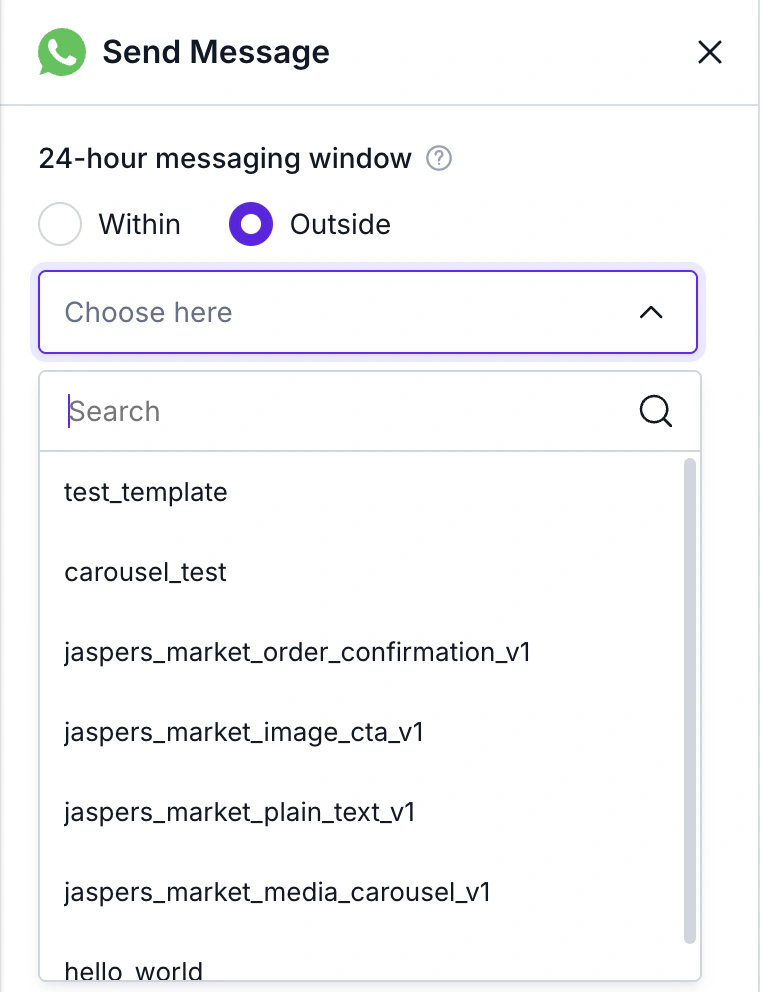
Inside a flow, the 24-hour messaging window switch of a Send Message block does the rest: choose Outside and pick the template.
One more detail from the Meta rules: while the free entry window from the ad is open, marketing, utility, authentication and service messages are not charged. A well-timed template inside that window costs nothing; the same template a week later does. For mass follow-ups, see how WhatsApp bulk messages work.
How to Tell What the Ad Brought
Two places answer two different questions. Ads Manager shows the ad side: what you spent and how many people the ad reached. WABB shows the conversation side: who wrote, what they chose and who is handling them.
Runs per keyword
How many chats each ad’s phrase started — the closest thing to a per-ad count.
Tags on the button taps
Tag who chose See the offer or Talk to a person to count the warm ones.
Chats and assignee
Filter chats by Tag, and see which are Unassigned or Mine.
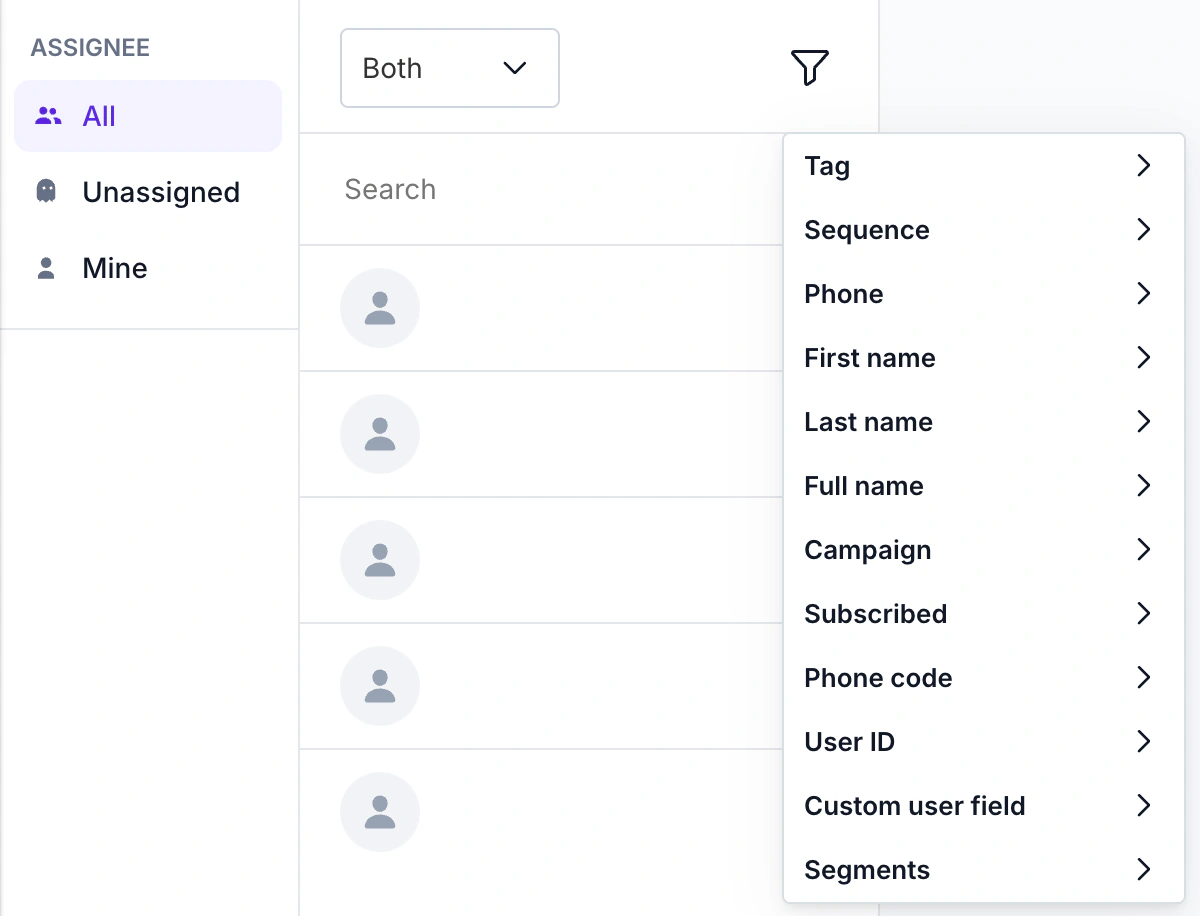
With those two numbers the arithmetic is simple: ad spend divided by chats gives the cost per chat; spend divided by the chats tagged as interested gives the cost per warm lead. Compare ads over the same days — WABB doesn’t read Meta’s ad ID, so the phrase and the tag are what tie a chat to an ad.
What Click-to-WhatsApp Conversations Cost
You pay Meta for the ad. The WhatsApp side follows Meta’s message pricing, which changed on 1 October 2026: replies in the 24-hour service window are billed again, with a monthly free allowance, while ad-driven chats keep a free window.
| Situation | What Meta charges |
|---|---|
| A customer’s message to you | Not charged. |
| Your reply within 24 hours of the ad tap | Not charged, and it opens a free entry point window of up to 7 days. |
| Messages inside that window | Marketing, utility, authentication and service messages are not charged. |
| Service messages outside the window | The first 1,000 per business number each month are free; charged from the 1,001st. |
| A tap from WhatsApp Web or Desktop | No free entry point window — it applies to the Android and iOS apps only. |
Source: Meta for Developers — Pricing on the WhatsApp Business Platform, page updated 30 September 2026, checked 12 October 2026. Rates differ by market — see Meta’s rate card.
Two practical consequences. First, the free window rewards a fast first reply, which is the same thing that wins the lead. Second, watch the allowance: the Free service messages counter on Settings → Connection (shown earlier) tracks the 1,000 per month. Meta also says that without a payment method on the account, service messages are delivered within the free tier but not after it is used up.
Common Click-to-WhatsApp Mistakes
| Problem | Likely cause | Fix |
|---|---|---|
| The first reply comes after 24 hours | Nobody was online and nothing answered automatically. | Start a flow from a keyword so the reply is instant, and add office hours for the rest. |
| You can’t tell which ad a chat came from | Every ad sends the same opening message. | Give each ad its own phrase and its own keyword. |
| The flow fires for unrelated chats | The keyword is too general, such as “hi” with Contains. | Use a product phrase, or switch to Begins with or Is. |
| A test from a computer isn’t free | The free entry point window only applies to taps on Android and iOS. | Test the ad on a phone. |
| Leads go cold after the first message | The flow ends with no way to reach a person. | Add a Talk to a person button that assigns the chat and notifies your team. |
| The test ends after a day | Too little data to judge an ad. | WhatsApp’s own guide suggests running an ad for at least seven days. |
The same one-tap idea works on your own site: add a WhatsApp chat button to your website, and route those chats through the same flows. For a flow that qualifies leads in free text, see what a WhatsApp AI Agent can do.
Launch Checklist
Run through this once before the budget starts:
The number is connected. Settings → Connection shows Connected and a good quality rating.
Each ad has its own opening message and its own keyword, switched on.
You tested on a phone — tapped the ad, sent the message and saw the right flow answer.
Talk to a person works: the chat is assigned and the team member is notified.
Billing is in place. A payment method on the Meta account, so service messages keep being delivered after the free tier.
The test runs long enough — at least seven days before you judge an ad.
FAQ
Common Questions
How do I set up Click-to-WhatsApp ads?
In Ads Manager, create a campaign, choose an objective, set the message destination to WhatsApp, add your budget, audience, creative and opening message, then publish. Connect the number to a platform first if you want automatic replies. See Create the Campaign in Ads Manager.
Which campaign objective should I choose?
Meta’s developer guide lists Engagement, Leads, Sales and Traffic as the objectives that support ads that click to WhatsApp, and its Help Center article also covers Awareness. Pick the outcome you want to measure — conversations, qualified leads or purchases. Meta changes the Ads Manager menus often, so check the labels in your account. See Create the Campaign in Ads Manager.
Do I need the WhatsApp Business API?
To link a number to the ad, Meta only requires a Page with a WhatsApp number linked, manually or through the API. To answer every tap with a flow or an AI Agent, the number has to be connected to a platform such as WABB. See What You Need Before You Start.
Are Click-to-WhatsApp conversations free?
The customer’s message is free. If you reply within 24 hours, your reply is free and opens a window of up to 7 days in which Meta doesn’t charge for marketing, utility, authentication or service messages. Check Meta’s pricing page for current rates. See What Click-to-WhatsApp Conversations Cost.
Can I see which ad a conversation came from in WABB?
WABB doesn’t read Meta’s ad ID. The reliable way is a different opening message for each ad and a keyword for each message; the keyword’s Runs column then counts how often each ad’s chats started. See One Ad, One Flow.
What can I send if the customer stops replying?
Inside 24 hours of their last message you can send normal messages; after that only approved templates, which can be delivered at any time. In WABB a Send Message block set to Outside lets you pick the template. See When the 24 Hours Run Out.
Can an AI Agent answer the ad’s chats instead of a flow?
Yes. When you create a keyword you choose either a flow or an AI Agent to start. An agent suits open questions; a flow suits a short, fixed path. See One Ad, One Flow.